
How to use the SAT spreadsheet
Use this guide every lesson to track student progress, assign homework, and review mock exam performance.
TAB: Student Calendar
Check every lesson:
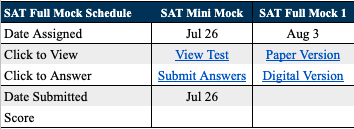
Full Mock Schedule — see if a Full Mock review is needed (usually completed on weekends)
Areas for Improvement — topic-specific recommendations for Practice Set assignments
Mock Schedule — view mock sections, answer submission form, and incorrect questions to review
Students can view test links once the Due Date column is populated.


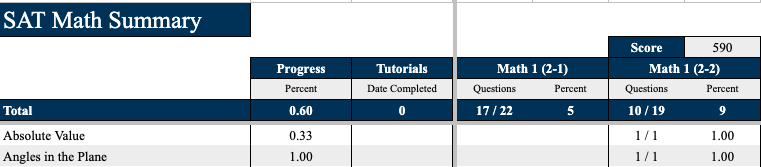
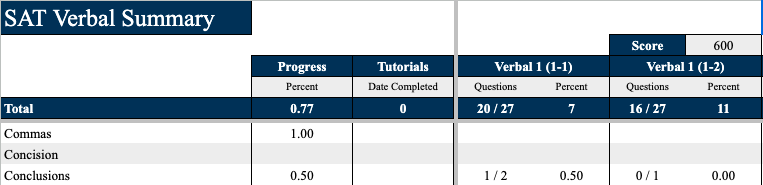
TAB: Math Summary / Verbal Summary
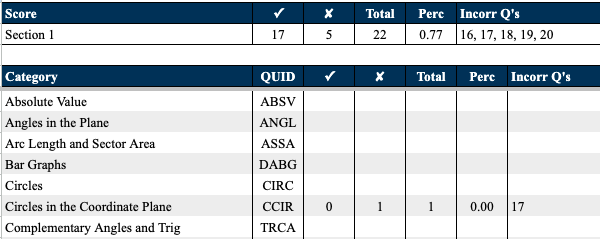
View topic-specific performance data broken down by mock test section — percentage correct and number of correct questions out of total. Use this to identify weak areas and choose practice sets.
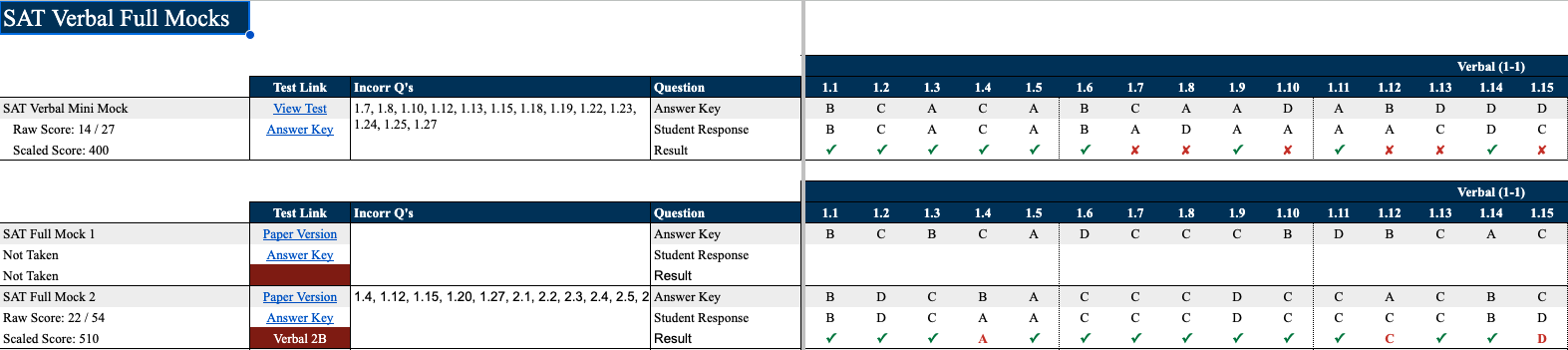
TAB: Full Mocks (Math / Verbal)
View scores, answer keys, and student responses for each Full Mock exam section.


TAB: Practice Sets
Assign topic-specific practice sets for homework or in-class work. Each topic has three difficulty variations: A (easy), B (medium), C (hard). Input a Due Date to make the set available to the student. Incorrect answers populate automatically after submission.

TAB: Mock Exams
Each mock section has its own tab with links to the PDF test, answer key, detailed solutions doc (if available), and student responses. Topic-specific data appears after the student submits answers — use this to assign relevant practice sets.
There is also a short video on how students access their Course Materials. Share it with any student who is confused about navigating the spreadsheet.