Lesson note submission
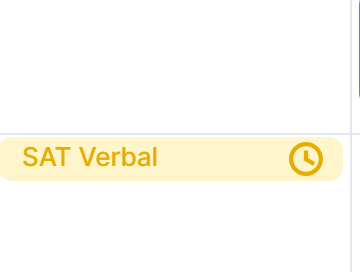
Lesson notes must be submitted within 24 hours of each class. A $5 penalty applies if not submitted on time. Classes with unsubmitted notes appear yellow on your calendar.
1. Access the lesson notes
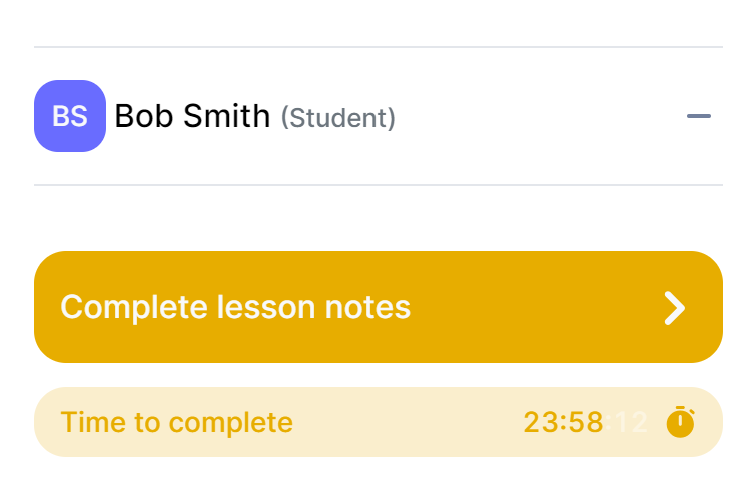
From your LivePrep Calendar, click on the class.
The Time to Complete bar shows how much time you have left (HH:MM).
Click Complete Lesson Notes to open the notes menu.
Note: The Complete Lesson Notes option will not appear until the scheduled end time of the class has passed.
2. Mark attendance
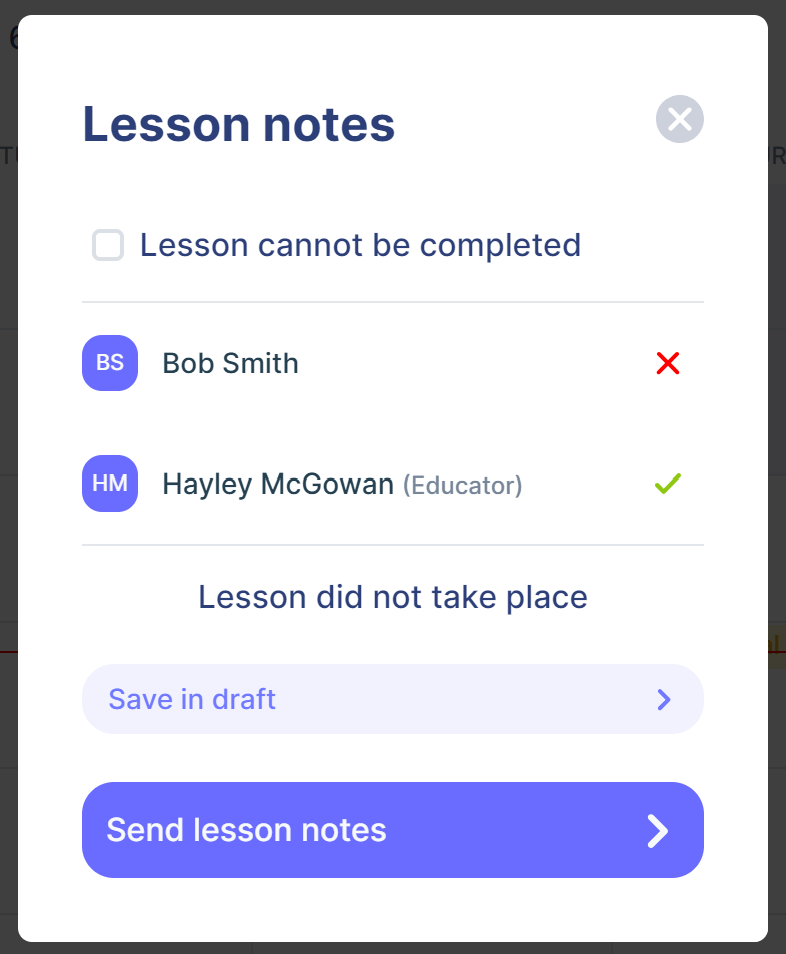
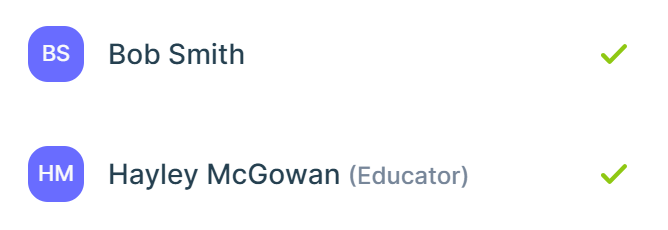
Attendance is automatically marked based on check-in data. Verify it is correct and make manual corrections if needed by clicking the attendance icons next to each name.
Important: Check attendance immediately after class. If you make changes, use Save in Draft first. If the platform will not let you correct attendance, contact Support immediately.
3. Student did not attend (no-show)
Verify the educator is marked attended and the student is marked absent. No comment fields need to be filled. Click Send lesson notes. The lesson will turn red on your calendar once submitted.
4. Student attended
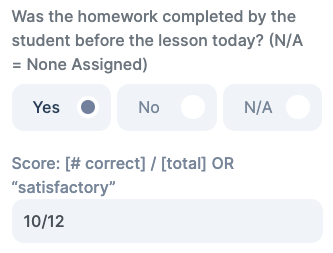
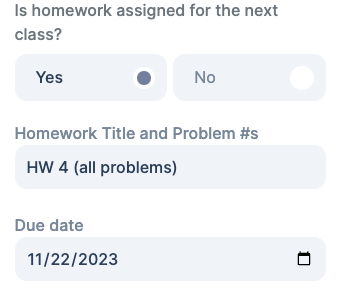
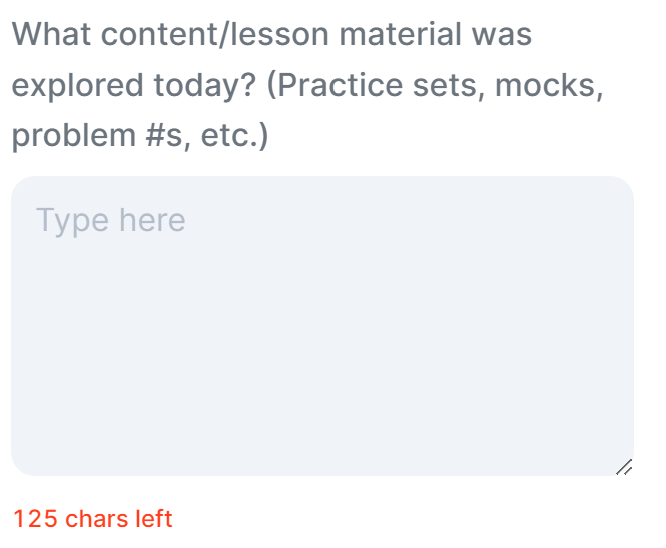
Verify both are marked attended. Fill in each field:
Was homework completed? — Yes (with score), No, or N/A. Not applicable for group classes.
Next homework assigned? — Yes (with title and due date) or No.
What did the student learn today? — Minimum 125 characters.
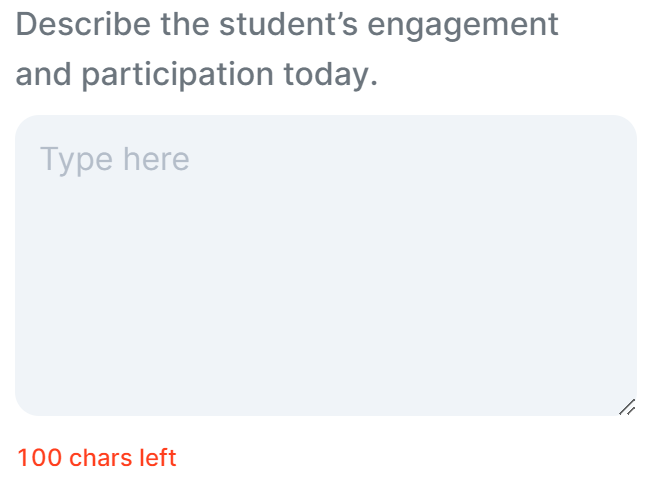
How was the student's effort and participation? — Minimum 100 characters. Not applicable for group classes.
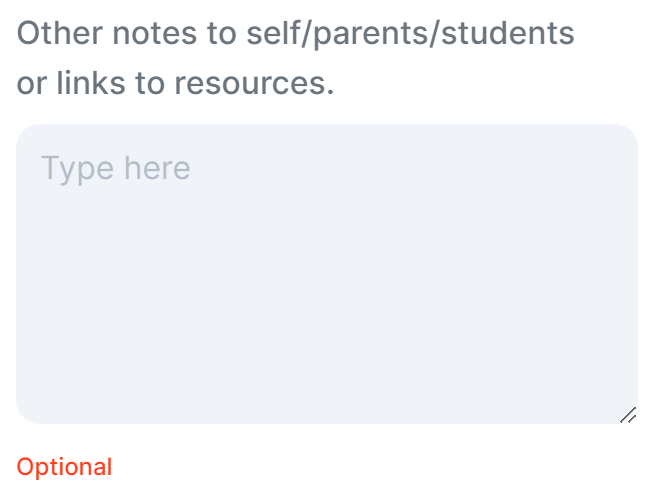
Other comments — Optional.
Tone: Lesson notes are sent to parents. Use encouraging language. For serious concerns about a student, contact hayley@zinkerz.com directly.
5. Submit and confirm
Click Send lesson notes. The button stays grayed out until all fields are complete.
Need more time? Click Save in Draft and return later.
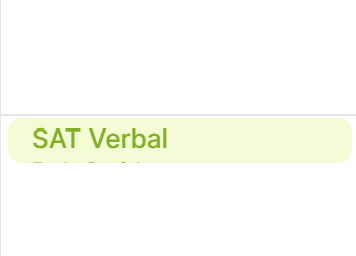
Confirm: the class should turn green (attended) or red (no-show). If still yellow, go back and check all fields.