
Calendar & availability
Set up your availability in LivePrep so Zinkerz can schedule you for lessons. You can also sync your schedule to your personal calendar.
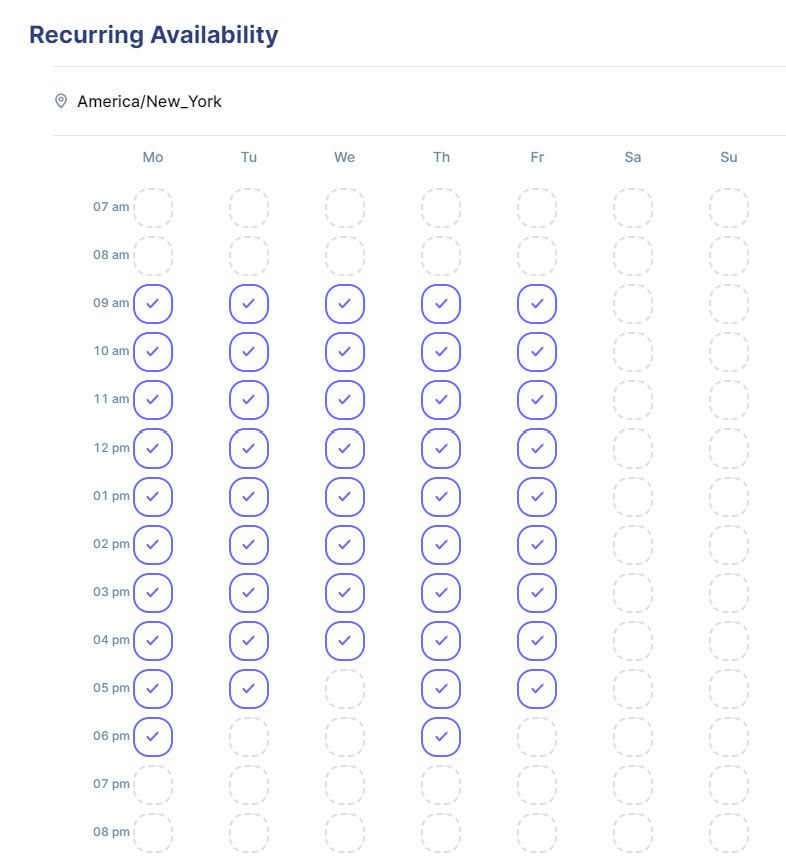
1. Set your recurring availability
Recurring availability is your consistent week-to-week schedule.
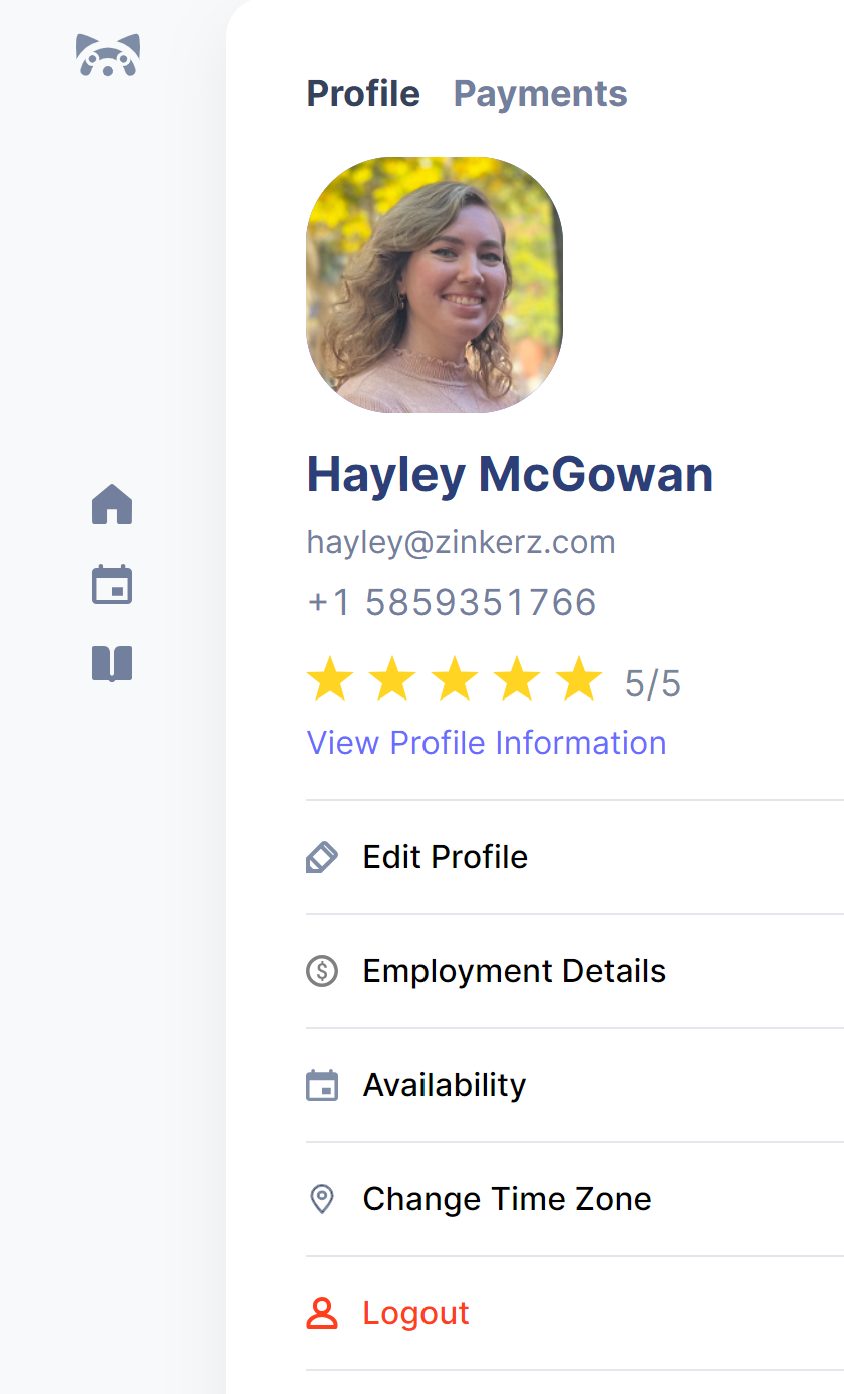
Go to LivePrep and click your profile icon.
Select Availability then Recurring Availability.
Confirm the correct time zone is shown at the top.
Click the bubble for each hour you are available to teach, for each day of the week.
Click Save at the bottom.
Important: Selecting a bubble means you are available for a class starting at that time. If you are unavailable after 6:00 pm, your last selected bubble should be 5:00 pm.
2. Set temporary availability
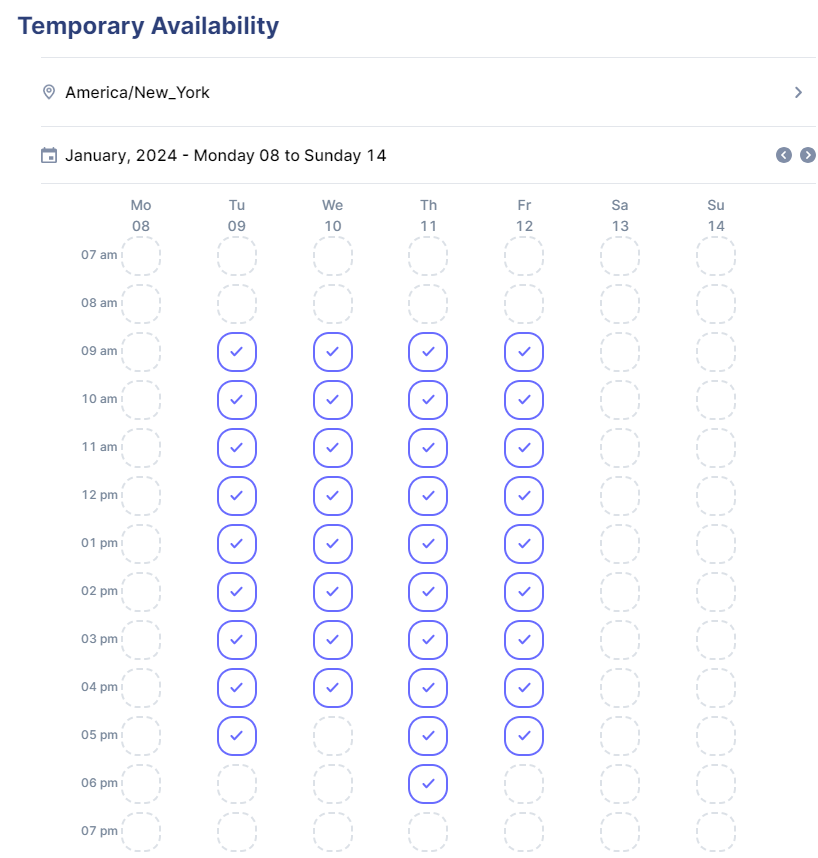
Use this to modify your schedule on specific dates when your hours differ from your recurring schedule.
From the Availability section, select Temporary Availability.
Use the navigation arrows to go to the specific week.
Add or remove time slots as needed. A green checkmark means you added a slot; a red dash means you removed one.
Click Save.
3. Sync with your personal calendar (optional)
Go to your LivePrep profile and select Employment Details.
Copy the iCalendar Feed link.
Open your personal calendar (Google, Apple, Yahoo, etc.) and find the option to subscribe to an external calendar.
Paste the link and follow the prompts. Set auto-refresh to the fastest available option.
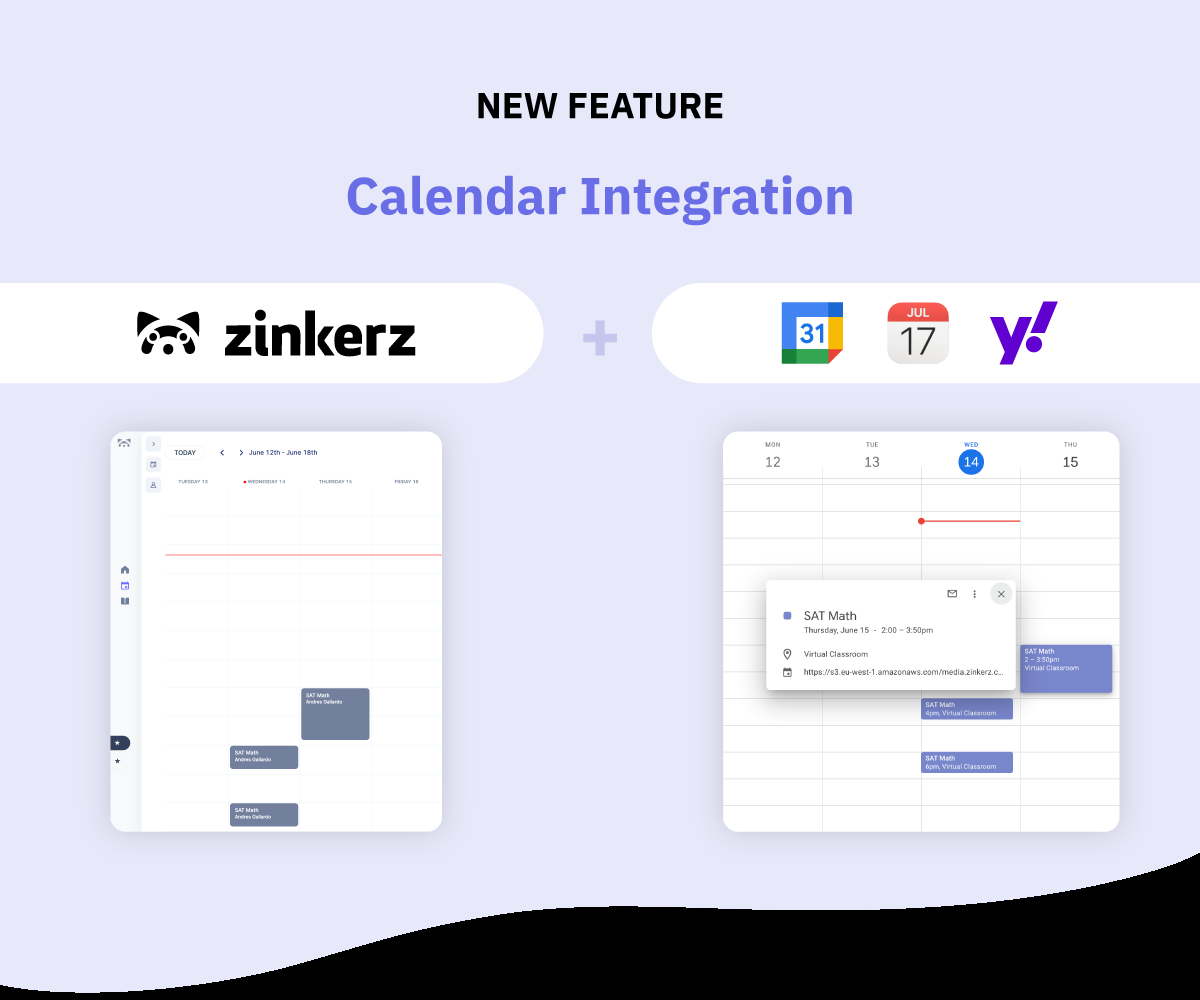
Note: Last-minute schedule changes may take up to 24 hours to appear in your personal calendar. Always use your LivePrep Calendar as the authoritative source.