
Setting up your profile
Before your first class, complete your LivePrep profile. This covers creating your account, entering personal information, uploading a photo, and setting your time zone. Complete all steps before your Platform Orientation.
1. Create your account
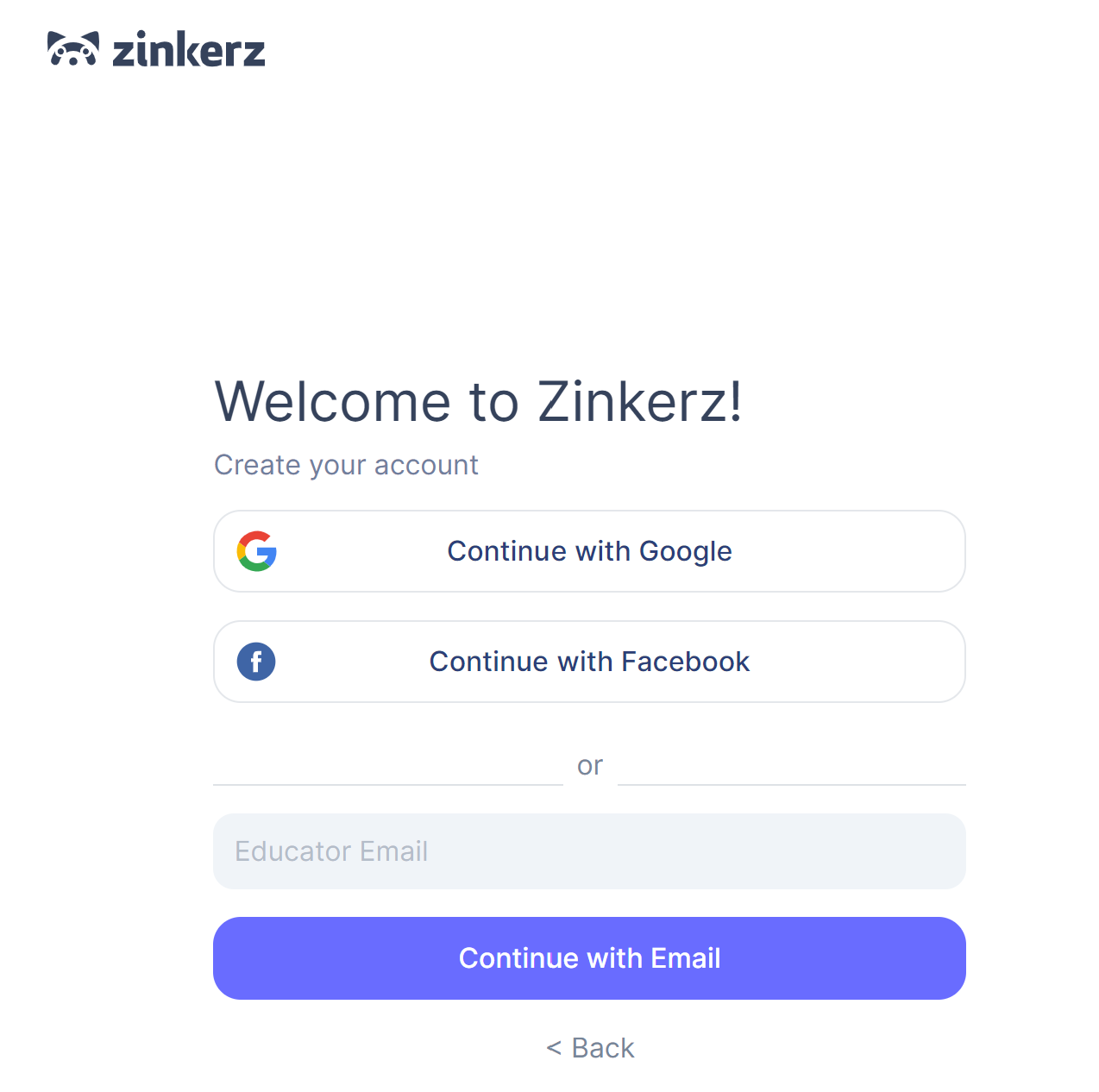
Go to the LivePrep registration page. Two options:
Continue with Google — uses your existing Google account.
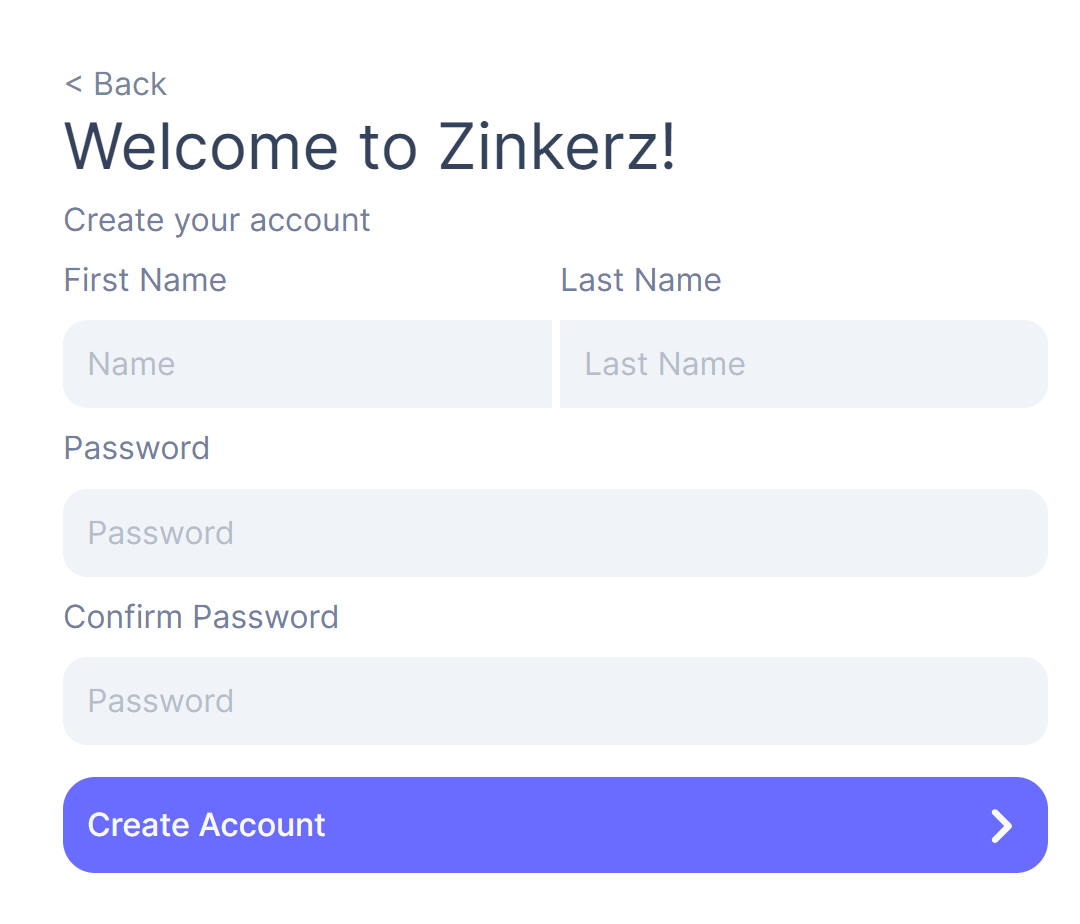
Continue with Email — enter your email, then your name and password on the next screen.
Remember which option you choose — you will need it every time you log back in.
2. Access your profile
After creating your account, click the profile icon next to your name in the bottom left corner of the screen.
3. Enter your personal information
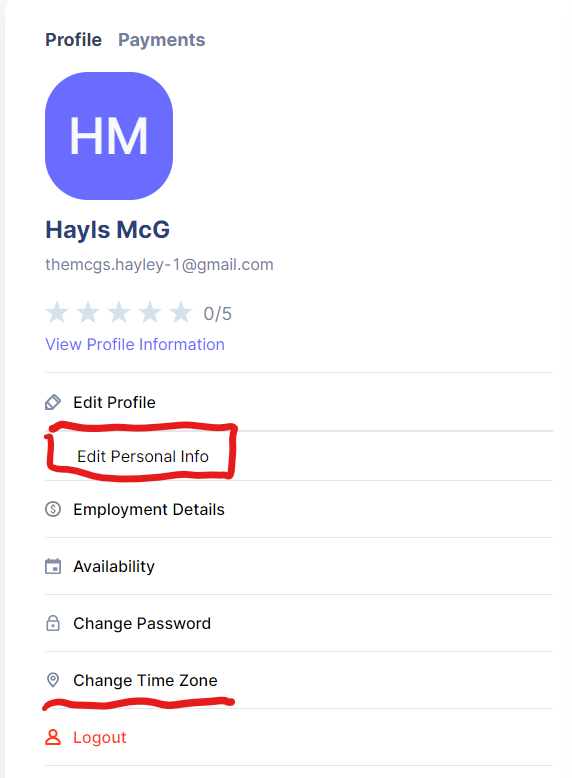
Select Edit Profile then Edit Personal Info from the left menu. Fill in all fields and click Save.
4. Upload your profile photo
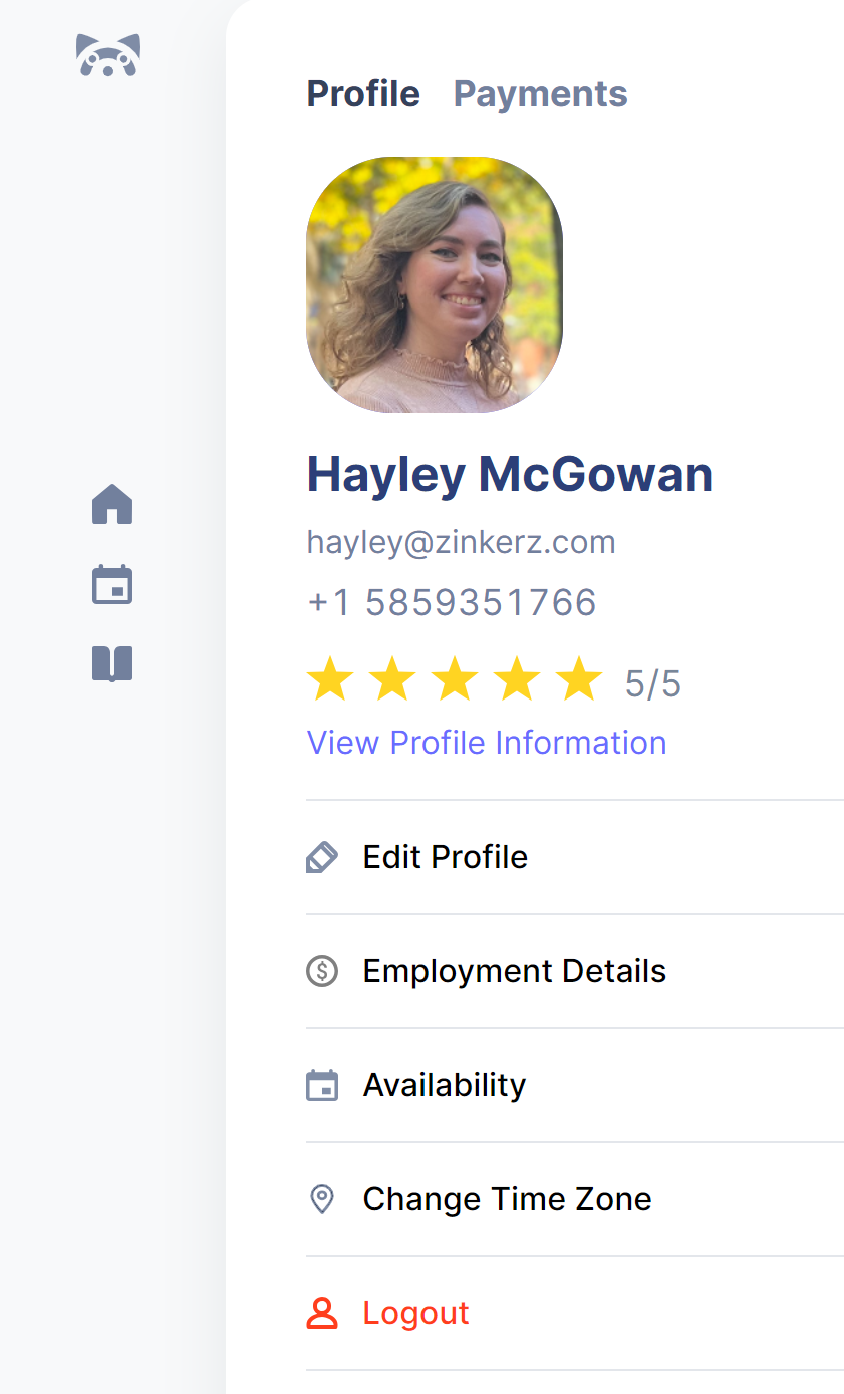
Your photo is visible to students and families. Use a clear, professional, close-up image of your face.
Hover over the profile photo icon — a camera icon will appear.
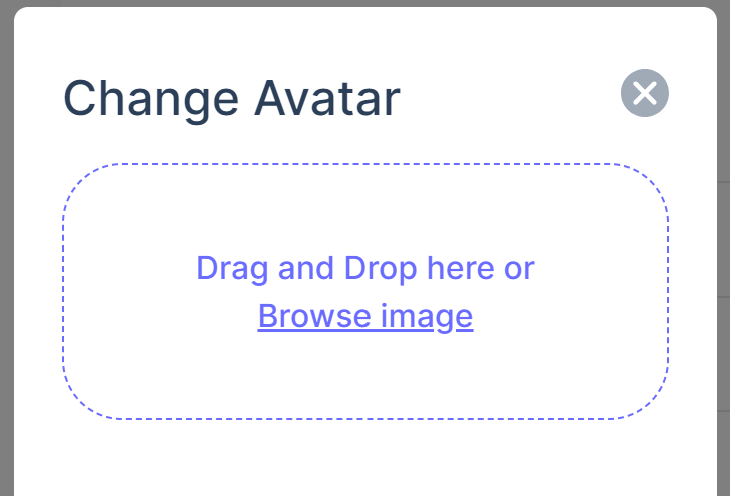
Click it, then drag and drop your photo or browse your files.
Click Save.
5. Set your time zone
Your time zone controls how class times appear on your calendar. Set this correctly before anything else is scheduled.
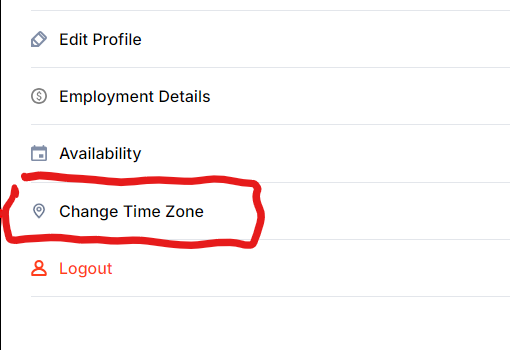
From your profile, select Change Time Zone from the left menu.
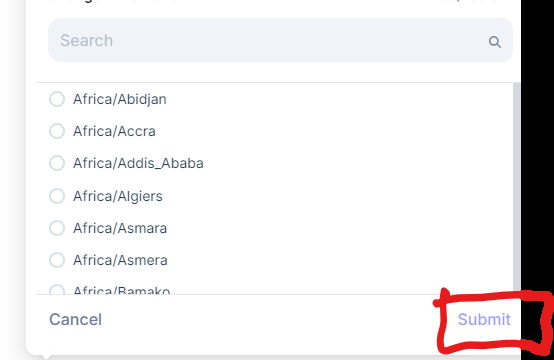
Search for your time zone and select it.
Click Submit.
Questions? Contact your onboarding coordinator at hayley@zinkerz.com. You will also get a full walkthrough during your Platform Orientation.